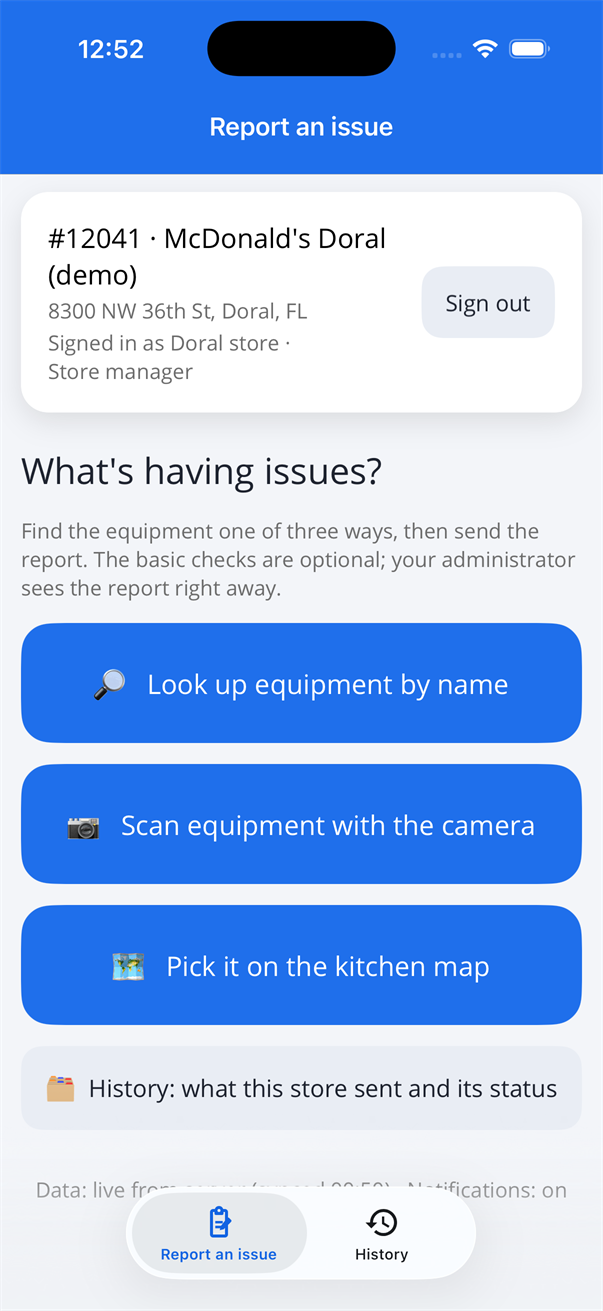
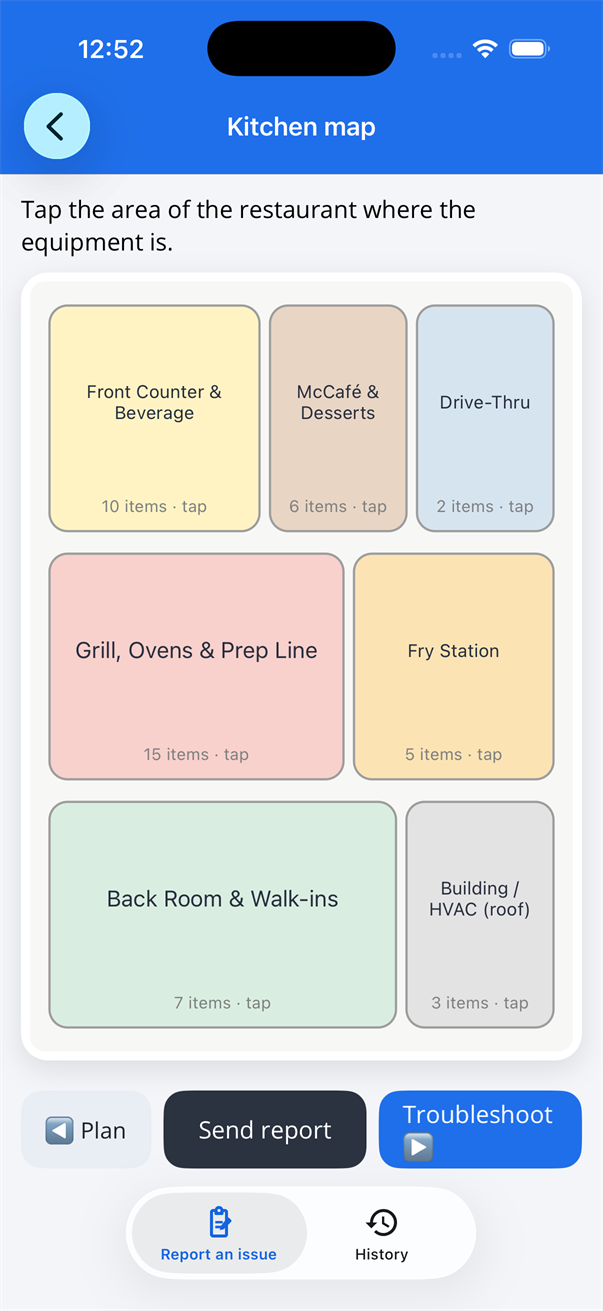
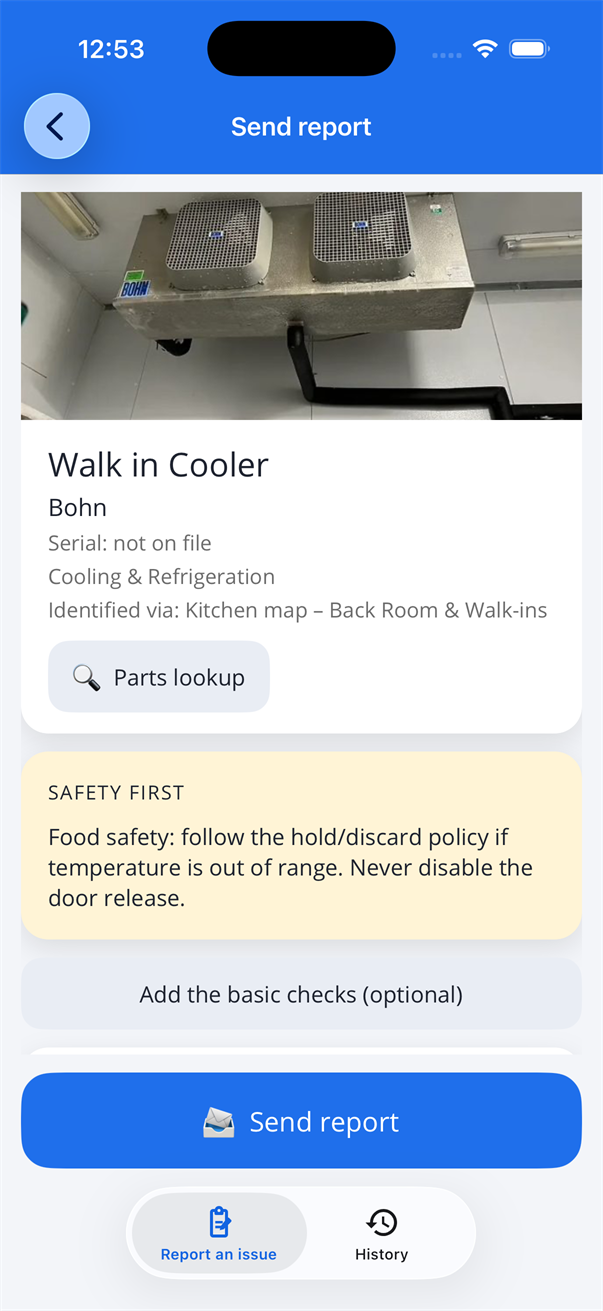
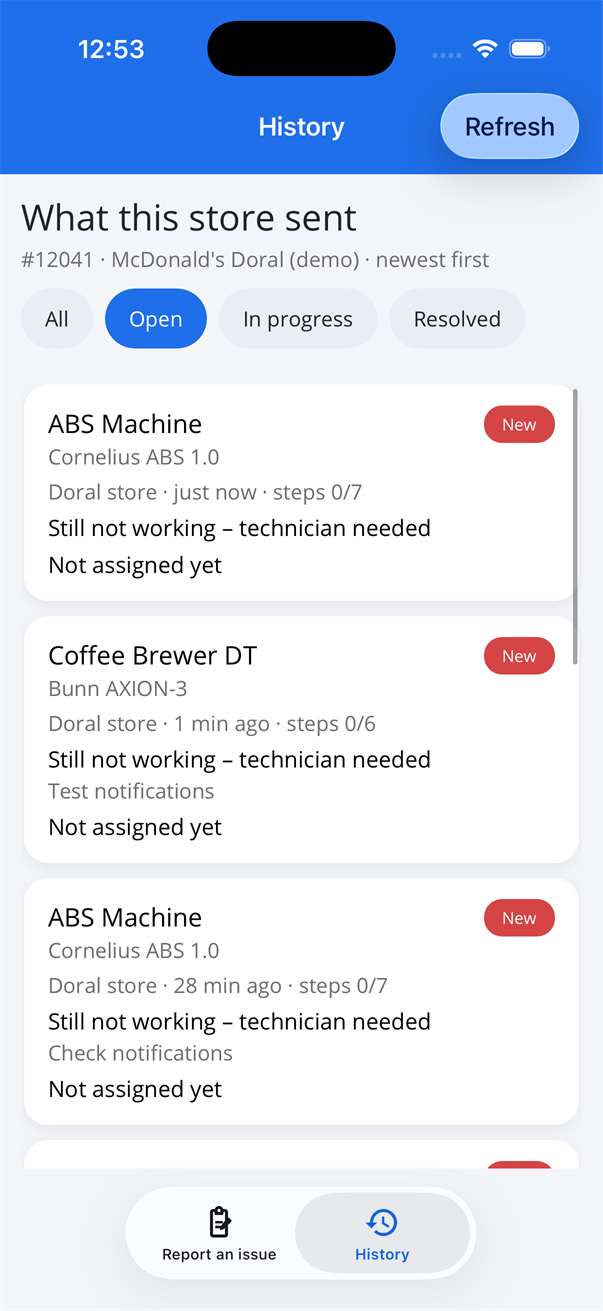
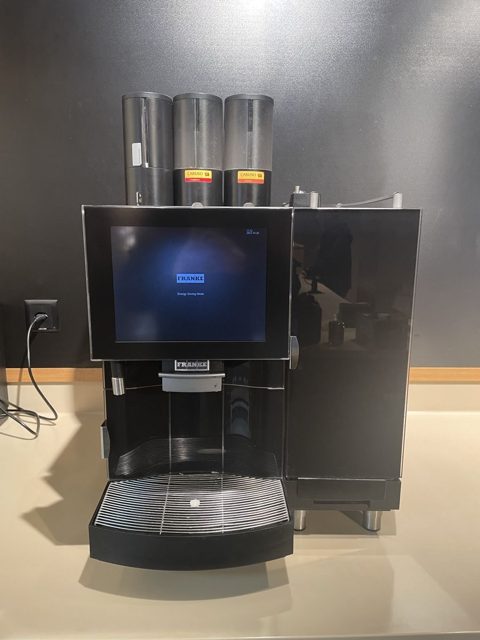
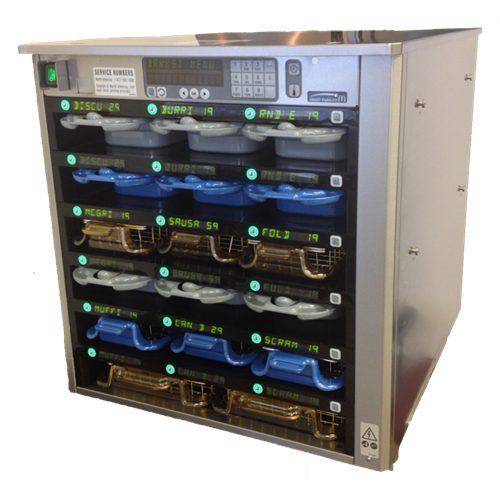
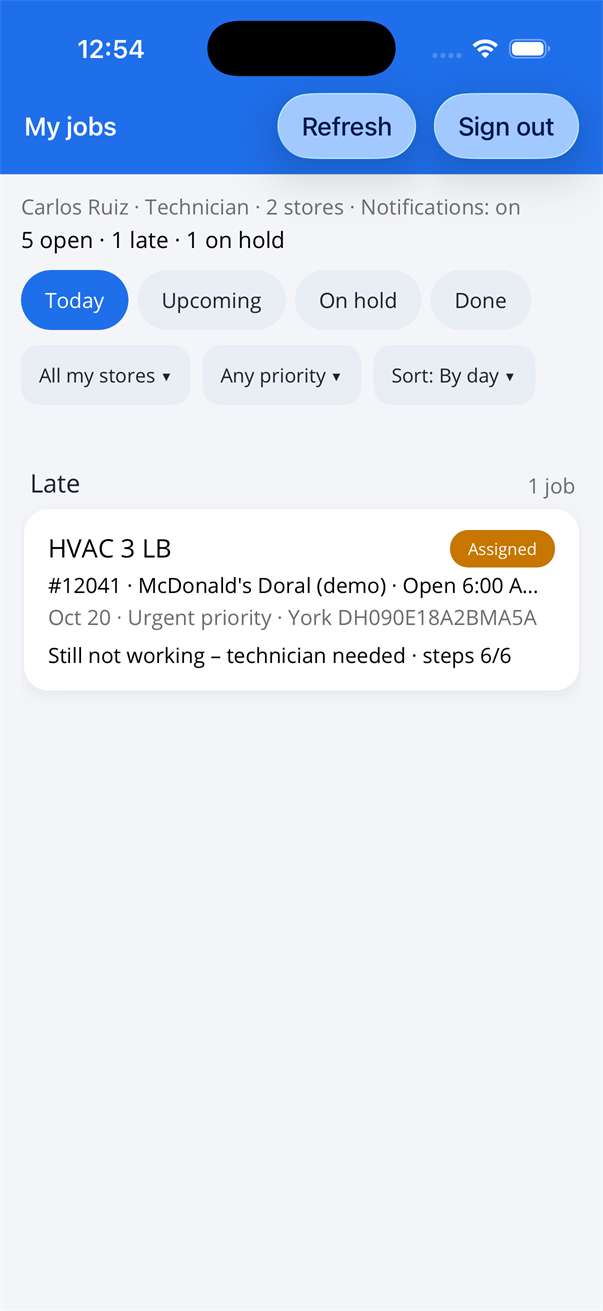
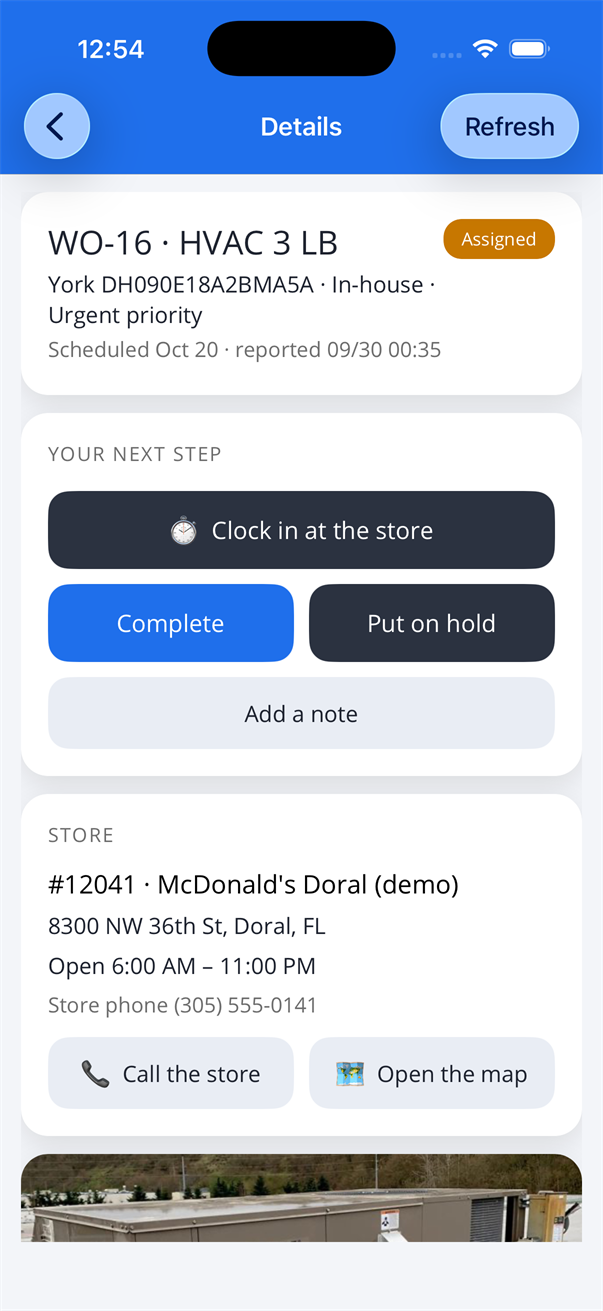
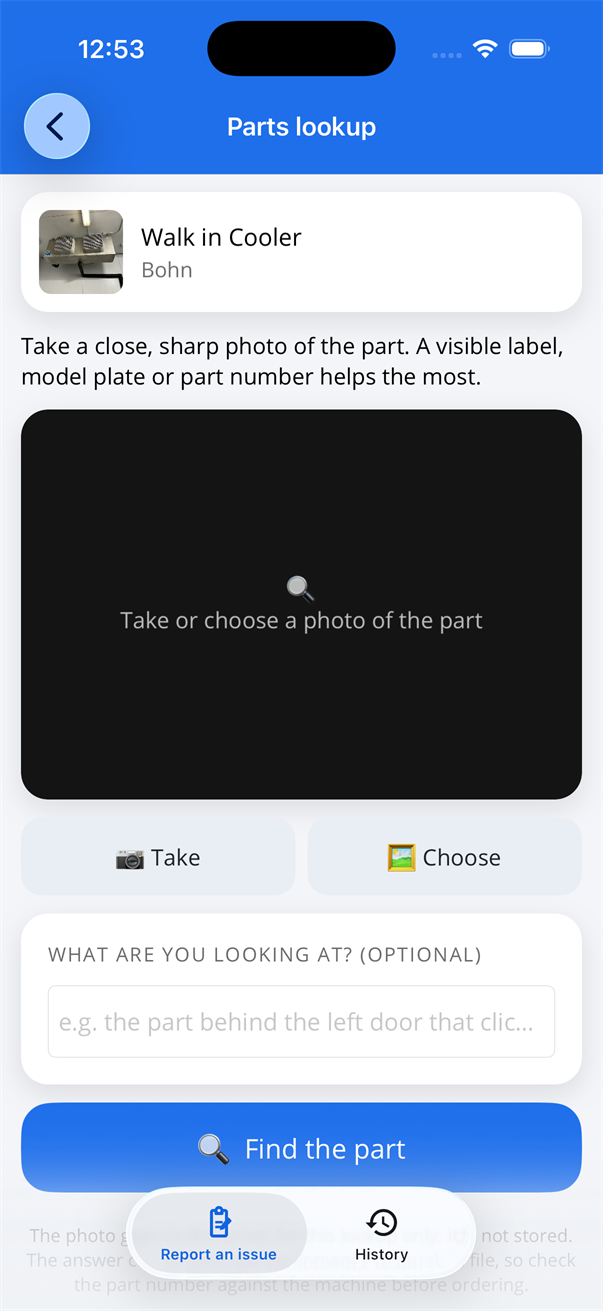
Find the equipment by name, by pointing the camera at it, or on the kitchen map. Run the basic checks, or skip them and send the report straight away. Your administrator gets it at once and sends a technician.
Screenshots from the app.
Every store has one login, shared by the manager, the assistants and the store tablet. Type the username and password your administrator gave you; the app stays signed in until you sign out.

Search by name, scan it with the camera, or tap the area on the kitchen map and pick it from the photos.

A safety note and a short checklist for that type of machine. Tick what you did, choose the outcome, add a comment if you want. In a hurry? Tap Send report next to Troubleshoot and skip the checks.

Tap once. The report goes to your administrator, who assigns a technician. Under History you see every report your store sent and where it stands.

Type a few letters: the name, the brand, the model, even the serial number. Each result shows the machine's photo so you know you have the right one.
Take a photo. Tap the machine in the photo if several are visible. The AI compares it with the reference photos and shows the best matches; you confirm with one tap.
Tap the area of the restaurant (front counter, coffee and desserts, grill line, fry station, back room, roof units), then tap the photo tile of the machine.
Two quick steps, about ten seconds in total. The photo is sent to our image-recognition provider for this one request and is not stored anywhere.
The AI first reads any brand names, model numbers or display text it can see, because a legible label beats shape. Then it uses shape, controls, doors and hoppers to pick up to five candidates from the store's equipment list. If you tapped the photo, it also gets a close-up of that spot.
The candidates, plus any look-alikes of the same type, are shown to the AI side by side with your photo as labelled reference pictures. This is what tells the two holding cabinets or the two fryers apart.
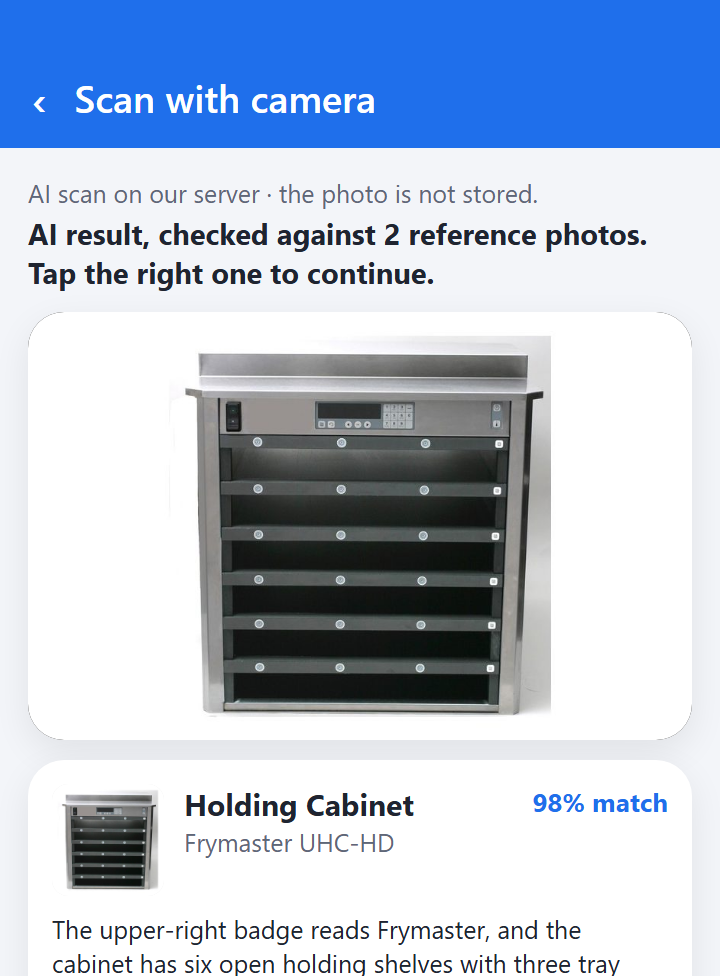
You see up to three matches with a confidence and a reason you can check against the machine in front of you ("upper-right badge reads Frymaster"). Tap the right one. If none fits, look it up by name instead.

The store's photo of a holding cabinet and the AI's answer: the match, its confidence, and a reason you can check on the machine itself ("upper-right badge reads Frymaster, six open shelves, green timer displays"). Because the two holding cabinets in the kitchen are near-identical, both are compared against the photo before the answer is shown.
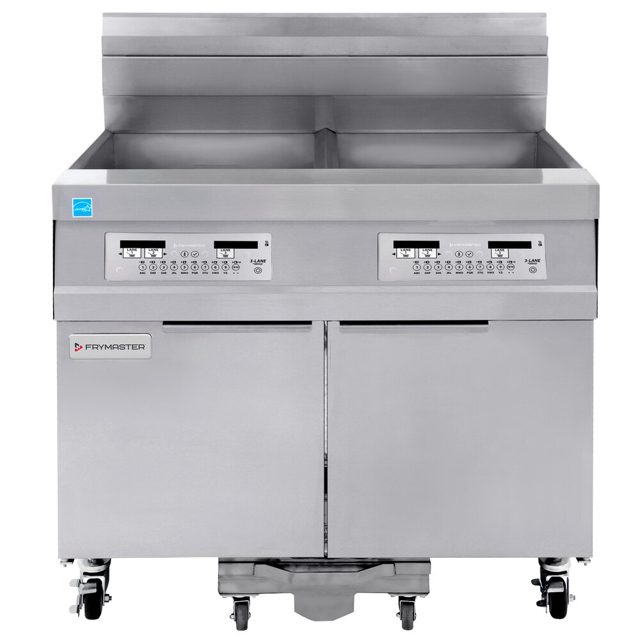
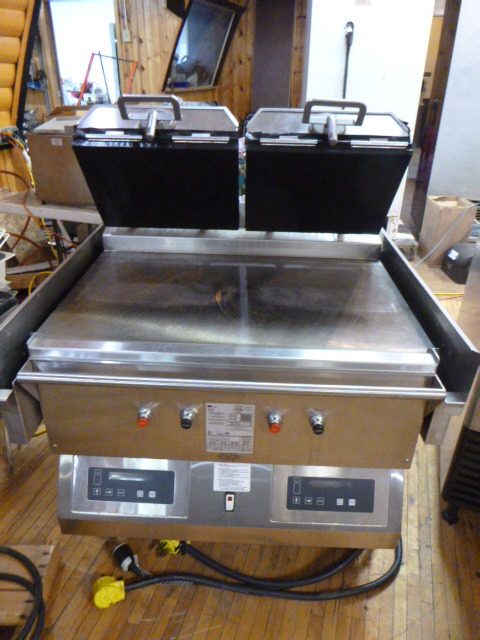
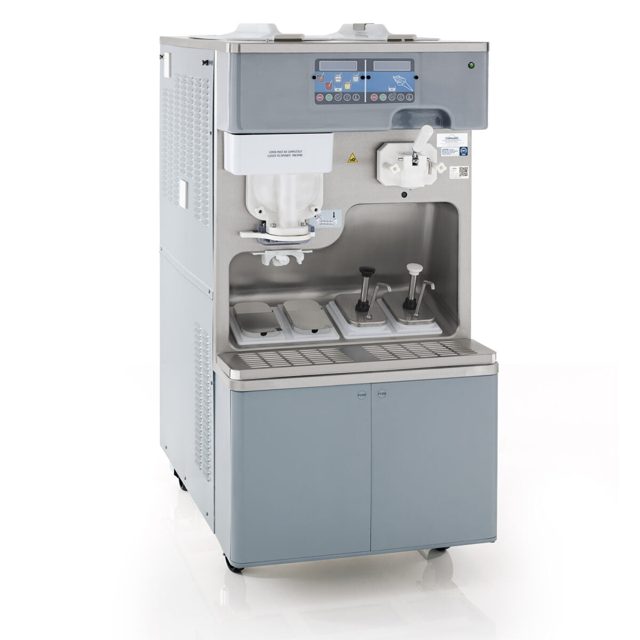
Below, a few of the reference photos the AI compares against.


The same facts go out twice: a full email and a one-line text message. Both open in your own apps, addressed to your store's maintenance contact, and you press Send.
One login per store, shared by everyone there. Add your technicians and tick the stores each one covers. New sign-in details appear once, with a Copy button, for you to pass on.
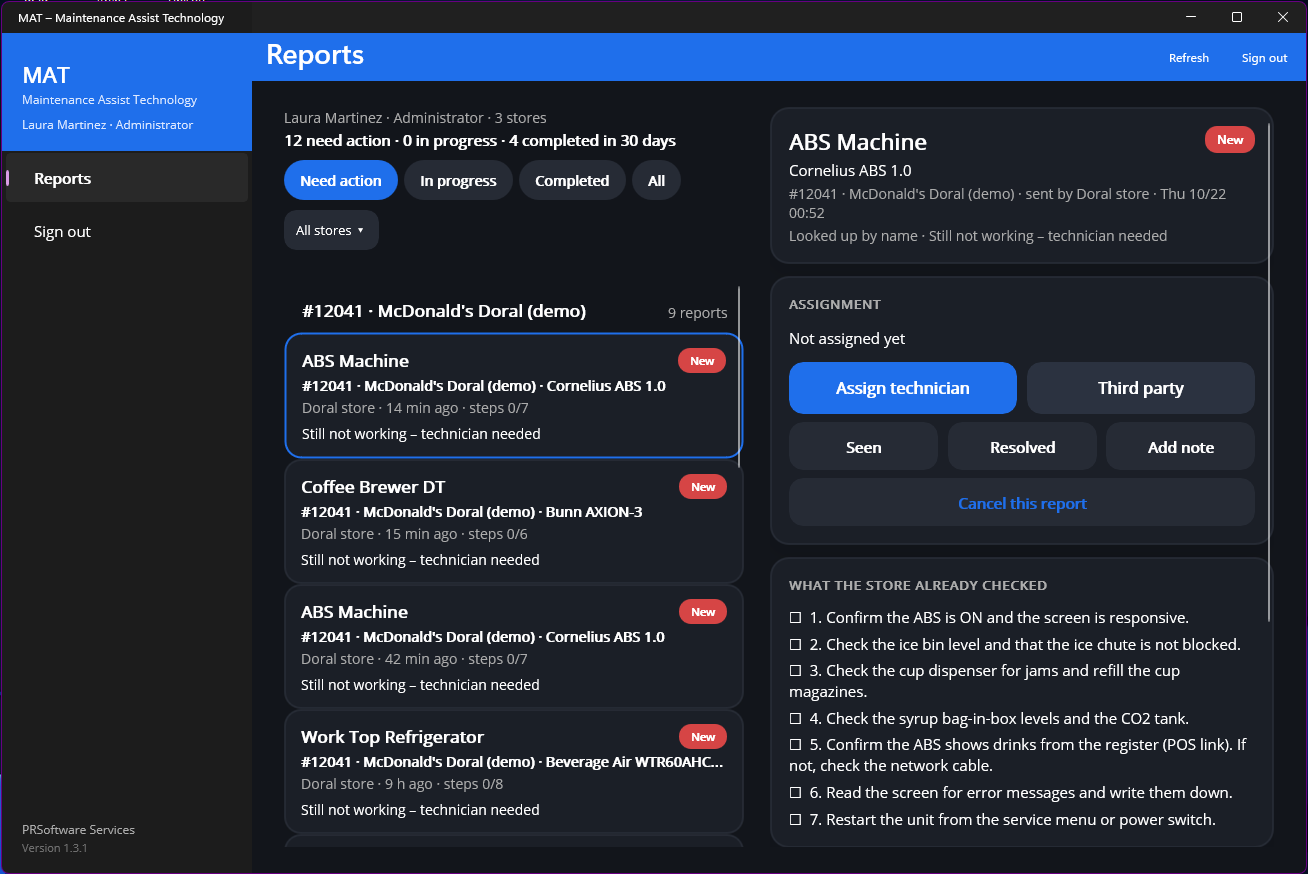
New reports from your stores wait under Reports. Assign each one straight from the list: your in-house technician, with a priority and a day, or third party, which goes to PRSoftware Services to arrange the repair.
See what is being worked on, what is on hold and why, and what was completed, with the technician's note and the full history of every machine. Repeat offenders show up fast.
Administrators work in the administrator portal on a computer. Technicians work in the app: they see only their stores and only the jobs assigned to them, today's first, with the store's phone, map and opening hours; they clock in at the store, complete the job or put it on hold with a note, and can look a part up from a photo.
Today's jobs first, then upcoming, on hold and done. Filter by store, priority or day.

Clock in at the store, complete or put on hold, call the store, open the map, see its opening hours and the machine's manual.

A photo of a part, and the AI finds it in the machine's manual: name, part number and page. Stores and technicians both have it.

Adding a store, updating an equipment photo or adding a new machine is done by PRSoftware Services in a few minutes. The app picks up changes on its next Sync; nothing to reinstall.
The app is for our customers' stores only. The links below ask you to sign in first with the username and password you were given (your store login, or your own as a technician or administrator). Once signed in, the download starts.
If the download isn't available yet, ask your administrator.
Test builds expire after 90 days; use the same button again to get the latest one.

A full desktop layout with a sidebar, made for training on a laptop; everything works the same as on the phone. Version 1.3.2, no admin rights needed.
Mostly yes. Search, the kitchen map and the checklists work offline with the last copy of the data on the phone. Only the camera scan needs a connection; a report written offline is kept on the phone and sent on its own as soon as you're back online.
It is sent to our image-recognition provider for that one request only. It is not saved on the phone, on our server, or in the report.
It shows up to three matches; tap the right one. If none fit, use Look up by name. Tapping the machine in the photo before Identify helps a lot when several machines are in the frame.
Not yet. Ask your administrator to have it added; it appears in the app on the next Sync.
Your company's administrator sees it right away and assigns it to an in-house technician, or sends it to PRSoftware Services as a third-party repair. Only the technician it is assigned to sees it in their app. Your store sees its status under History.
Ask your administrator: they can reset it in the portal and give you the new one. The app stays signed in on each device until someone signs out.